

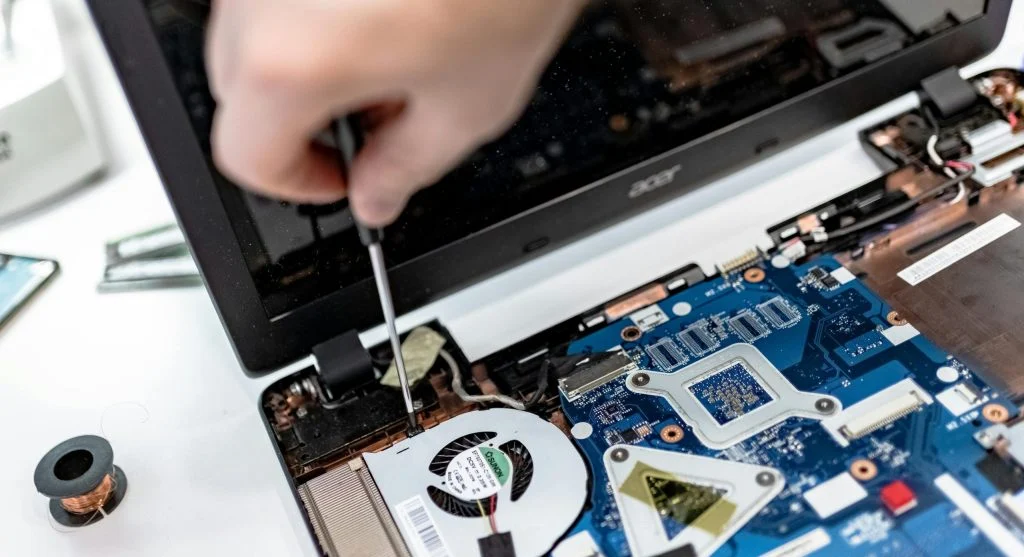
Knowing how to reduce laptop fan noise can make using your device more comfortable and help maintain better performance. Loud fans are often a sign that the system is overheating or handling heavy tasks.
Technology experts explain that fan noise can usually be reduced with simple maintenance and better usage habits. This guide covers practical steps you can follow.
Why Laptop Fans Become Loud
Before learning how to reduce laptop fan noise, it’s important to understand the cause. Fans typically become louder when the laptop is overheating.
Experts note that dust buildup, poor airflow, and demanding tasks can all increase fan activity.
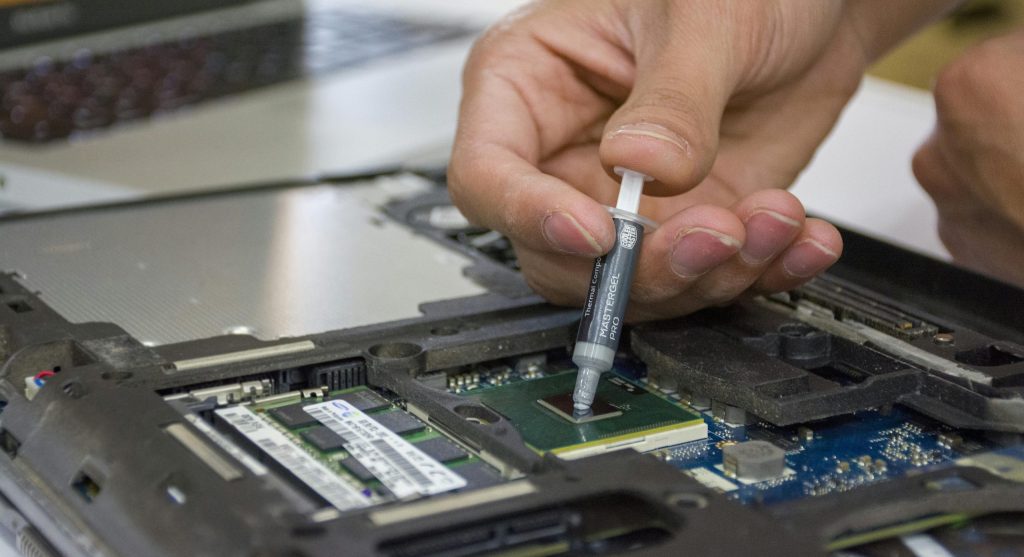
Clean Dust from Vents and Fans
Dust can block airflow and raise internal temperatures. Cleaning the vents helps the system stay cooler.
Experts recommend using compressed air regularly to remove dust.
This improves cooling efficiency and can reduce fan noise.
Close Heavy Background Applications
Running too many programs at once increases CPU usage, which forces the fan to work harder.
Experts suggest closing unnecessary applications.
This reduces system load and helps keep noise levels lower.
Use a Cooling Pad
A cooling pad improves airflow beneath the laptop, helping to lower its temperature.
Experts often recommend cooling pads for users who run heavy applications.
They can help maintain quieter and more stable performance.
Adjust Power Settings
Power settings directly affect system performance. Lower performance modes generate less heat.
Experts suggest using balanced or power-saving modes when possible.
This can help reduce fan noise.
Keep Laptop on a Hard Surface
Using a laptop on soft surfaces like beds or couches can block airflow and trap heat. A hard surface allows proper ventilation.
Experts recommend placing laptops on desks or tables.
This ensures better airflow and cooling.
Update Software and Drivers
Outdated software can cause higher resource usage, which leads to increased heat and fan activity.
Experts recommend keeping your system and drivers up to date.
This helps improve efficiency and reduce overheating.
Frequently Asked Questions
Q: Why is my laptop fan so loud?
A: It may be due to overheating or heavy system usage.
Q: Can cleaning reduce fan noise?
A: Yes, removing dust improves airflow and cooling.
Q: Do cooling pads help?
A: Yes, they improve airflow and reduce heat.
Q: Should I change power settings?
A: Yes, lower settings can reduce heat and noise.
Key Takeaway
Learning how to reduce laptop fan noise helps improve comfort and performance. Simple steps like cleaning, managing apps, and improving airflow can make a big difference. Regular maintenance keeps laptops running quietly and efficiently.