

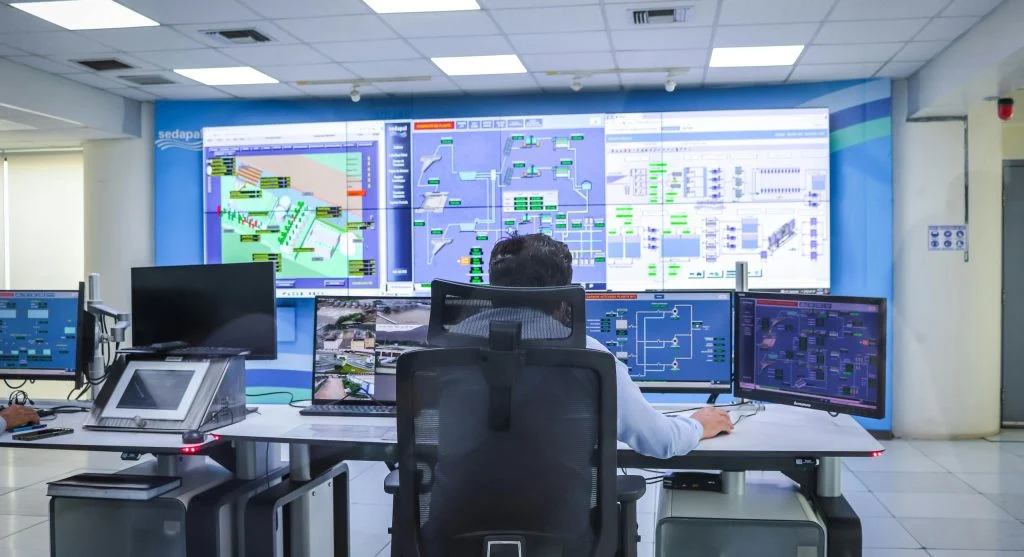
Knowing how to check PC specifications helps users understand their computer’s performance and overall capabilities. It is useful when troubleshooting issues, planning upgrades, or installing new software.
Technology experts explain that checking system details is simple and does not require advanced technical knowledge. This guide covers easy steps that beginners can follow.
Why Checking PC Specifications Is Important
Before learning how to check PC specifications, it helps to understand why these details matter. System information shows what a computer can handle and where its limits may be.
Experts note that knowing PC specifications can help with upgrades and make sure software is compatible with the system.
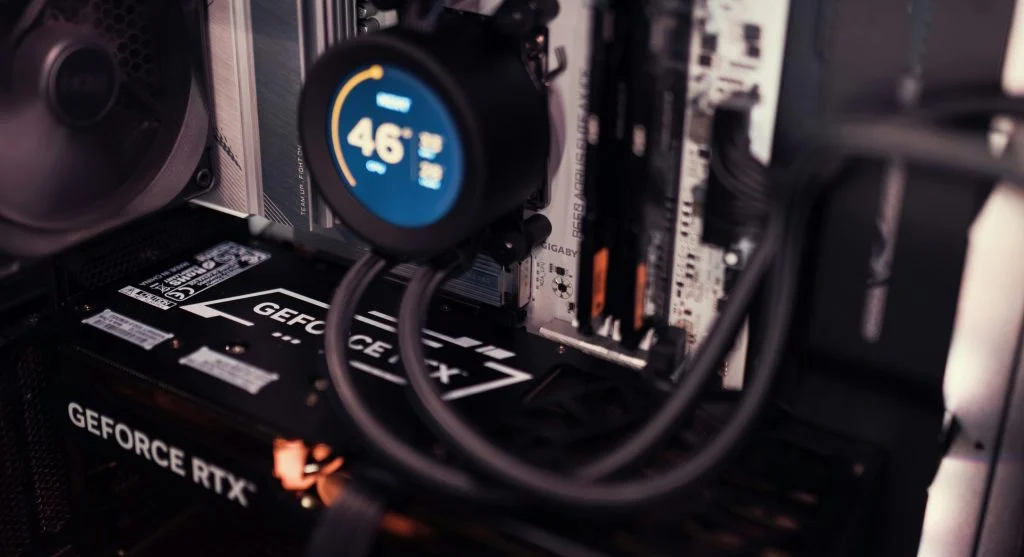
Credit: Matheus Bertelli / Pexels
How to Check PC Specifications on Windows
Learning how to check PC specifications on Windows is simple because the system already includes built-in tools for viewing important details.
Step 1: Open Settings
Click the Start menu and open Settings. From there, go to the System section.
Step 2: View About Section
Select the “About” option. This section shows basic details such as the processor, RAM, and system type.
Step 3: Use Task Manager
Open Task Manager to view performance details. This can include CPU usage, memory usage, and storage activity.
Step 4: Check Storage Information
Go to the storage settings to see disk size and available space.
Step 5: Use System Information Tool
Open the System Information tool if you want more detailed hardware data.
How to Check PC Specifications on Laptops
The steps for laptops are almost the same when learning how to check PC specifications. Most laptop users can follow the same process used for desktop computers.
Experts explain that laptop users should also check battery details and display information.
These details can help users better understand performance, battery life, and portability features.
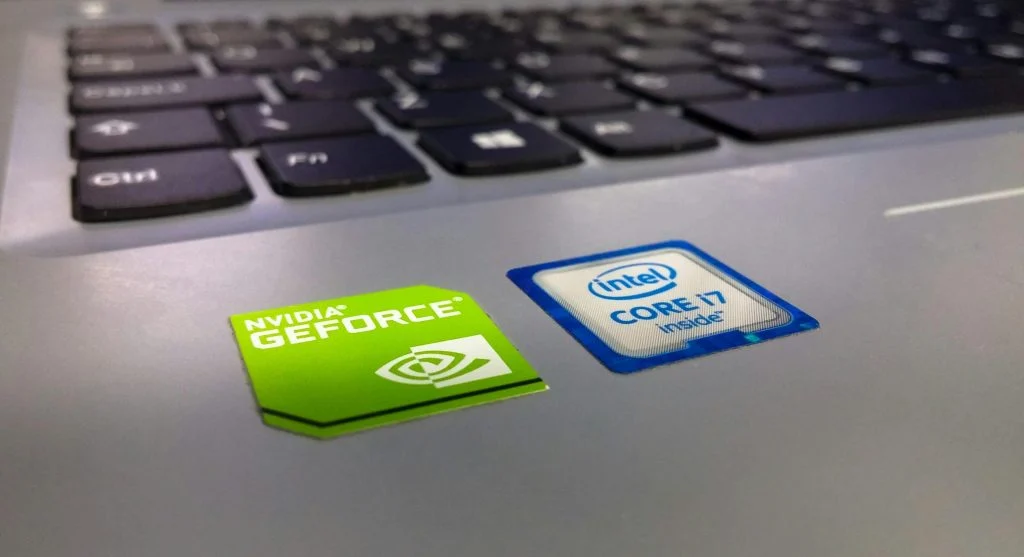
Credit: Jordan Harrison / Pexels
Key Hardware Details You Should Know
When checking specifications, some details are more important than others. These details help users understand how well their system can perform.
The CPU shows the computer’s processing power. RAM indicates how well the system can handle multitasking. Storage type affects both speed and capacity.
Experts also note that graphics details are important, especially for visual tasks such as gaming, editing, or design work.
When You Should Check Your PC Specifications
Knowing how to check PC specifications can be useful in many situations. Users may need this information for several reasons.
Experts recommend checking specs before installing new software or upgrading hardware.
It is also helpful when troubleshooting performance issues or trying to understand why a computer is running slowly.
Credit: cottonbro studio / Pexels
Common Mistakes When Checking Specifications
Some users make mistakes when trying to find system details. Avoiding these errors can help them get more accurate information.
One common mistake is checking only partial or incomplete information. Experts recommend using built-in system tools to view full details.
Another common issue is confusing storage with RAM. Understanding the difference between the two is important when reading PC specifications.
Frequently Asked Questions
Q: How can I check my PC specifications quickly?
A: You can open system settings or task manager to view key details.
Q: Do I need software to check specs?
A: No, built-in tools provide most of the required information.
Q: Why should I know my PC specs?
A: It helps with upgrades, troubleshooting, and software compatibility.
Q: Can I check specs on a laptop?
A: Yes, laptops use the same methods as desktop computers.