

Close Unnecessary Background Programs
Running too many applications at once can slow down performance. These programs use system resources.
Experts recommend closing unused apps to free memory and processing power.
This improves responsiveness.
Clean Temporary and Unused Files
Temporary files build up over time and take up space. This can affect speed.
Experts suggest cleaning storage regularly to improve performance.
Removing unnecessary files helps systems run efficiently.
Disable Startup Programs
Startup programs load when the computer starts. Too many programs can slow boot time.
Experts advise disabling unnecessary startup apps.
This helps the system start faster.
Update Your System and Software
Updates fix bugs and improve performance. Outdated systems may run slower.
Experts recommend keeping software up to date.
This ensures better performance and security.
Scan for Malware and Threats
Malware can slow down systems by using resources in the background.
Security experts suggest regular scans to remove threats.
Keeping systems secure improves speed.
Upgrade Hardware if Needed
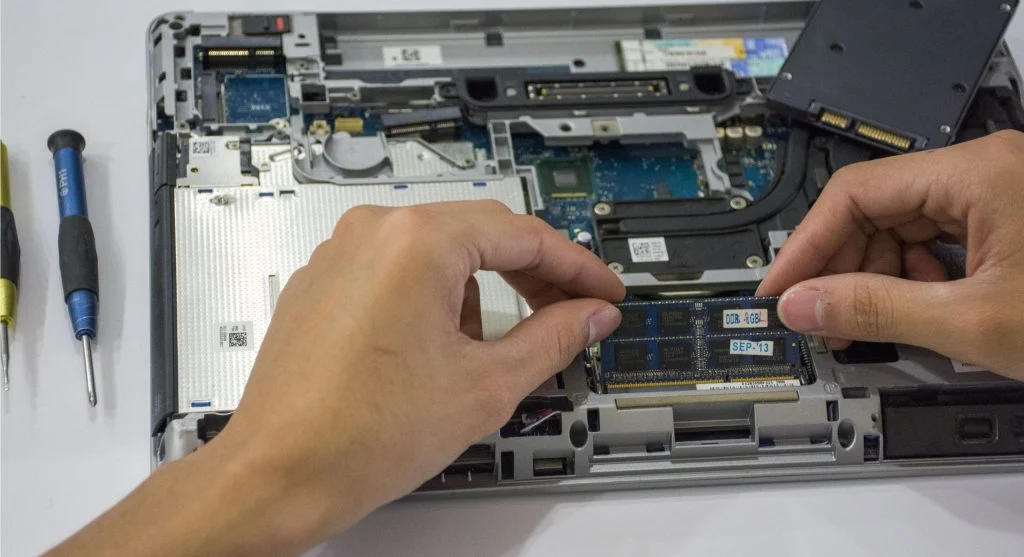
If problems continue, upgrading hardware may be necessary. Adding RAM or switching to SSD can improve performance.
Experts recommend upgrades for older systems.
This provides long-term improvement.
Frequently Asked Questions
Q: Why is my computer slow?
A: It may be due to background programs, low memory, or outdated software.
Q: Can cleaning files improve speed?
A: Yes, removing unnecessary files improves performance.
Q: Does upgrading hardware help?
A: Yes, adding RAM or SSD improves speed significantly.
Q: How often should I restart my computer?
A: Experts recommend restarting regularly to maintain performance.
Key Takeaway
Knowing how to speed up a slow computer helps improve performance and efficiency. Simple steps like cleaning files, updating software, and managing programs can make a big difference. Regular maintenance ensures long-term system performance.